
A Week With Windows 8: Day Four – Getting To Know 8

So I’ve been using Windows 8 constantly now for four days and I’m starting to get used to it. That doesn’t mean however that I am starting to like it. I’m finding myself basically staying away from Metro as much as humanly possible, but here is what I’ve found so far…
The Four Corners
Each and every corner of Windows 8 has a different feature, which, so far as I can see can’t be changed. The bottom left is the Start button, the two right corners bring up the fabled “settings panel” and the top left corner shows you what applications are open so you can right click to close them – no crosses on the top right of windows here, oh no! Instead you have to go to the top left of the screen, wait for the popup to appear, right click on the application you want to close and finally click close – more more simple hey!
To make things even more complicated, the applications that are shown on the top left of the screen are only shown if the application is a Metro one. I still don’t know how to close other, non-metro applications like Chrome apart from going into to task manager. I don’t think most users will know how to do that though so I think a lot of people’s RAM will get full very quickly.
Being a long term Linux user, I prefer to have the task bar at the top of the screen. I would have thought that if I moved the taskbar to the top then the Start button would have come up with it, but oh no – the Start button stays right where it is. Yet more complication!
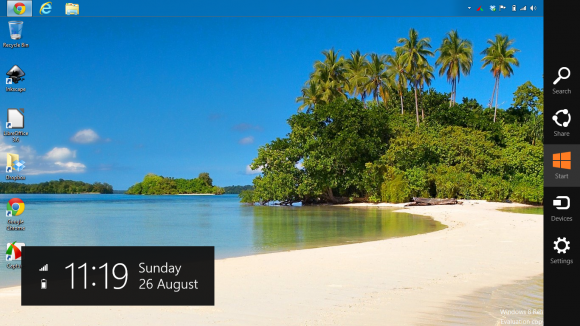
The fabled ‘Settings Panel’
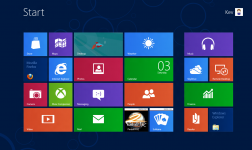
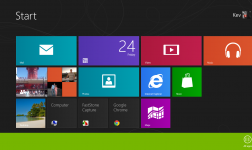
Metro Start Menu
I just can’t get used to Metro. Anything that is installed gets automatically added to the back of the ‘list’ within Metro but common sense dictates that any applications that you install are obviously needed by you so therefore why wouldn’t they be added to the start of Metro for easy access? Instead you get all the silly ’tiles’ like mail & calendar. Let’s face it 99.9% of users will either use Outlook or webmail for this.
There are absolutely no administrative icons on the Metro menu by default. Control Panel is hidden away, as are things like RDP, run and command prompt – all items that I use literally on a daily basis in Windows (as would most system admins). Too add a shortcut to Metro is once again a frustratingly slow, convoluted process…
You have to right click on Metro, select “all apps”, find the app you want, right click on the app you want to add and select “pin to start”. It’s just crazy how slow everything is in Windows 8.
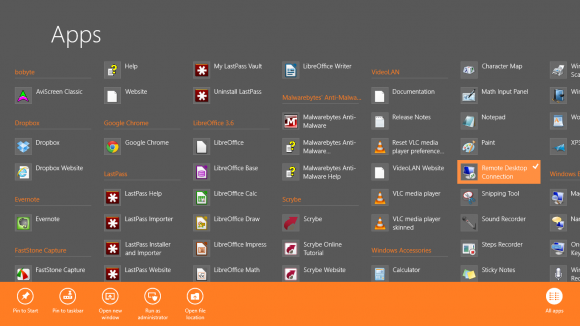
Metro’s All Apps Menu
Conclusion
Why couldn’t Microsoft have added a ‘fall back’ mode? In Windows 7, you can turn off Aero and make it look like Windows 95/98 – it’s called ‘classic mode’ whereby everything (including the Start menu) looks like Windows 95/98. Why can’t they add this same functionality to Windows 8 – it would make it all so much simple for a lot of users.
Come back tomorrow to see how I get on with personalising Windows 8.
Day Five – Personalisation —->






Pingback: A Week With Windows 8: Day Three - A Users Perspective | RefuGeeks()