
How To Change The Default GRUB Time Out

 This article is over six months old. Which means the information below may be out of date. Please keep this in mind whilst reading this article.
I love Ubuntu but the default wait of 10 seconds that you have to endure when booting up is a real pain. I know you can simply hit enter to select the Ubuntu boot option but I just think that 10 seconds is far to long to wait. I could understand if it was 3 or even 5 seconds – but 10, that’s just way to much for me.
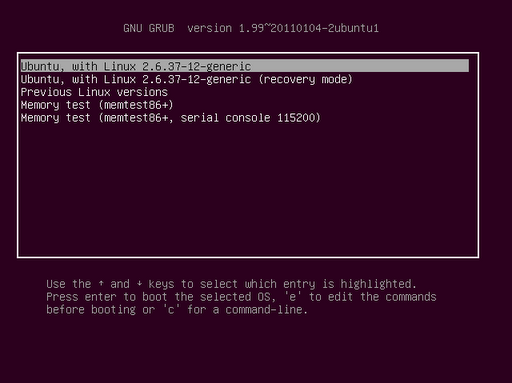
The Ubuntu GRUB loader
In previous versions of Ubuntu I used to install a program called Startup-Manager to change the default time out to 1 second, but it looks like development has stopped for this application so I now simply change the GRUB configuration file in order to reduce the time period. Here’s how…
First of all you need to open up the GRUB configuration file with root privileges. to do this, run the following command in terminal then enter your password:
gedit /boot/grub/grub.cfg
Once you have entered your password, G-Edit will load up along with the GRUB config file. Now press ctrl+f and type “timeout” into the search field. It should find two entries that look very similar to the text highlighted in the image below:
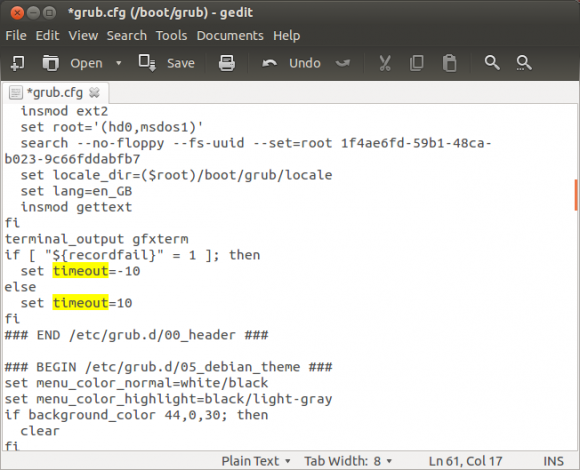
All you need to do now is change the two lines that say “set timeout = 10″ to “set timeout = 1″, save the file and exit both G-Edit and terminal. This will set the GRUB default time out to 1 second.
WARNING – Do not set the time out to zero as this will mean that GRUB is completely bypassed. You will not be able to dual boot or get into advanced boot options like previous kernel versions or memory testing should something go wrong.


-
TheCattor
-
https://refu-archive.kevquirk.com/ Kev Quirk
-
-
shadowguy14