
How To Use Your Own Domain With Gmail

 This article is over six months old. Which means the information below may be out of date. Please keep this in mind whilst reading this article.
A couple of days ago I wrote about Google removing their free version of Google Apps. So on the face of things there is no way for you to use your own email domain yet have all the benefits of Gmail. Well my good people, I’m here to tell you all that this statement isn’t completely true. In this article I’m going to show you a way of having all the benefits of Gmail, yet using your own domain.
Step One: Register for Gmail
Most people already have a Gmail account, but if you don’t you can sign up for one using this link for free. Don’t worry about what the prefix of the Gmail address is as it doesn’t really matter because you won’t be using it. However, I would still make it as sensible as you can just in case you decide to stop using your domain at a later date.
A handy tip I find is that if your name is taken, for example craig.phillips@gmail.com, try reversing the names as they’re usually available. For example, try phillips.craig@gmail.com. Now that we have our Gmail address setup we need to move on to step two…
Step Two: Register a domain
Registering a domain is very simple and very cheap. At around £8.00 a year for .com and around £3.00 a year for .co.uk. I own multiple domains including refugeeks.com (obviously), kevquirk.com, kevquirk.co.uk & quirk.eu.
Some great domain hosts are 1&1, Compila & GoDaddy. Out of the three I have listed I would personally recommend Compila. Their hosting is excellent and it’s who I use for all of my domains including RefuGeeks.
Once you have found and registered a domain you need to create an email forward. To do this log into your package with what ever provider you have registered your domain with and setup a new email forwarder that will forward your desired email address to your new Gmail address. In this example I’m going to forward john.smith@jingaling.co.uk to my new fictitious Gmail address john20495@gmail.com.
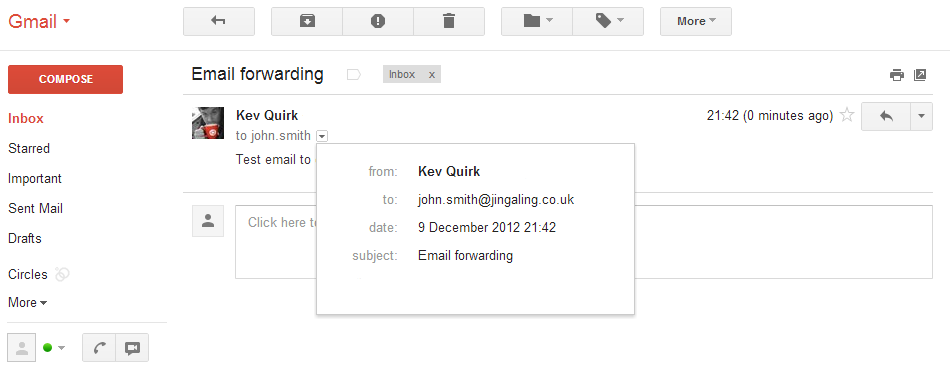
Once the forwarding address is setup all mail sent to john.smith@jingaling.co.uk will automatically be redirected to my Gmail address. You can test this by sending an email to your new address and it should appear in your Gmail inbox.
Step Three: Send from your new address
Now that we can receive emails into Gmail from our new email address, we now need to be able to send from our new address. This is where the limitation of Gmail vs Google Apps really shows itself. Once the account is setup so that you can send from your new email address, all emails you send will have the from address as “john20495@gmail.com on behalf of john.smith@jingaling.co.uk“.
However, this only seems to appear in Outlook. In other mail tools like Yahoo, Thunderbird & Gmail, this does not happen. If the recipient hits reply, it will always reply to john.smith@jingaling.co.uk so it isn’t the end of the world really and most people won’t even notice.
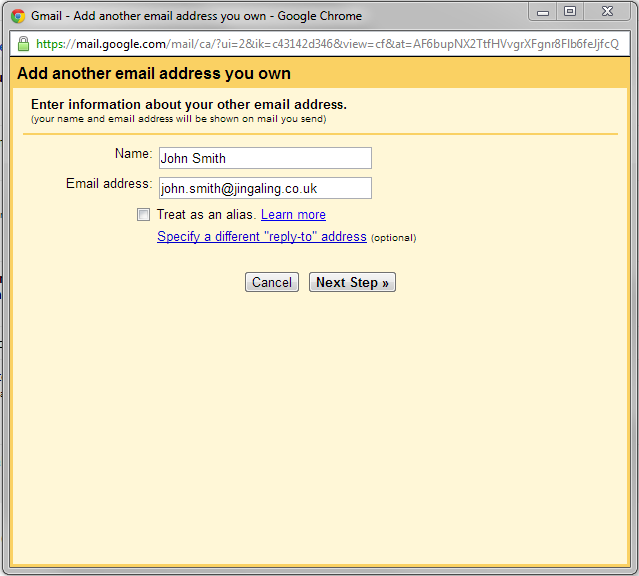
Ok, to setup the send from address log into Gmail, click on the cog icon to the right and select Settings. In the settings window that appears click on the Accounts and Import tab. Finally, about a third of the way down the page click on the Add another email address you own link.
A popup will then appear asking you to enter your new address details, enter your new address and un-tick the Treat as an alias check box. Click next, then next again, leaving all screens on their default values. Gmail will then send a verification code to your new address to prove you own it. Minimise the popup, check your inbox and enter the code to validate your new email address.
The final step is to make the new address the default for your Gmail account. To do this, go back into the Accounts and import tab within settings and select the Make default link next to your new email address. This will ensure that whenever you compose a new email or reply to incoming mail, it will always come from your new address and not the Gmail one.

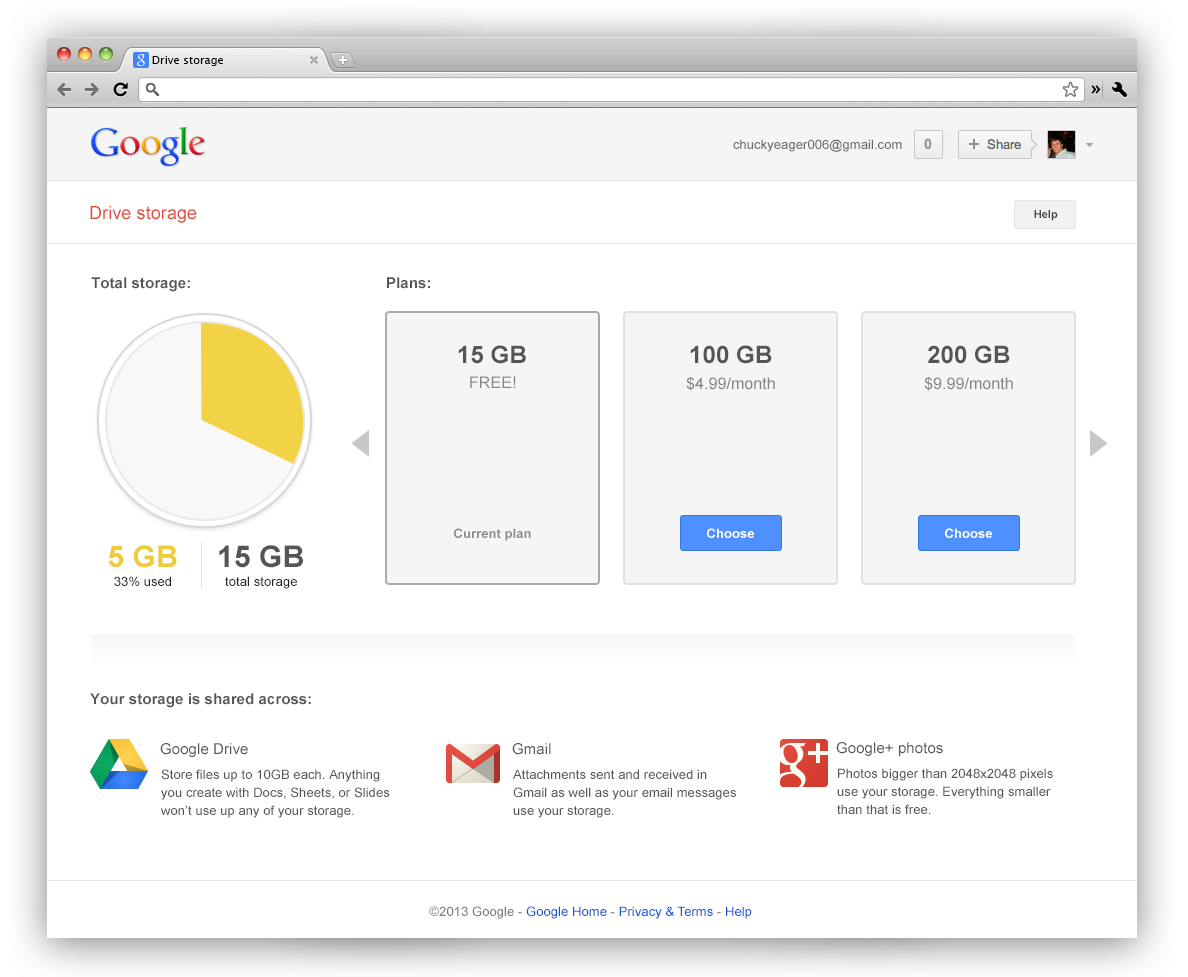
That’s it! You are now ready to go with your new email address. There is one more limitation that I need to tell you about. If you decide you want to use other Google services like Google+ and Google Drive, these will be attached to your Gmail account so you will need to use your Gmail address to log into these services. You will also need to continue using your Gmail address to login to your inbox – this is another reason to setup an easy to understand Gmail address.
Conclusion
This is a quick and easy workaround that will allow you to use your own email domain as well as some of the great features Gmail has to offer. If you have multiple addresses then you can also have these forward to your Gmail account, just repeat the process above to add additional addresses. You will then have a drop down menu when you compose emails so that you can select which address to send from. I would also recommend changing the When replying to a message section of the default address settings to Reply from the same address to which the message was sent.
If you have any questions, comments or problems then please feel free to list them in the comments below, you can also head over to our forums if you want to talk some more or need help with Gmail.





Pingback: How To Have Your Own Custom Email Address For Just The Price Of A Domain | RefuGeeks